Showing posts with label Animation. Show all posts

Monday, 10 September 2018

XF SIGN IN/UP ANIMATION

Hello guys, how are you?
Hope you all very well and enjoy my article :)
Today I am going to show you how to create SIGN IN/SIGN UP Page in Xamarin.Forms with animation.


Last month I saw an animation and I was thinking that how can we do this kind of design implementation in xamarin.forms.
So guys lets start...
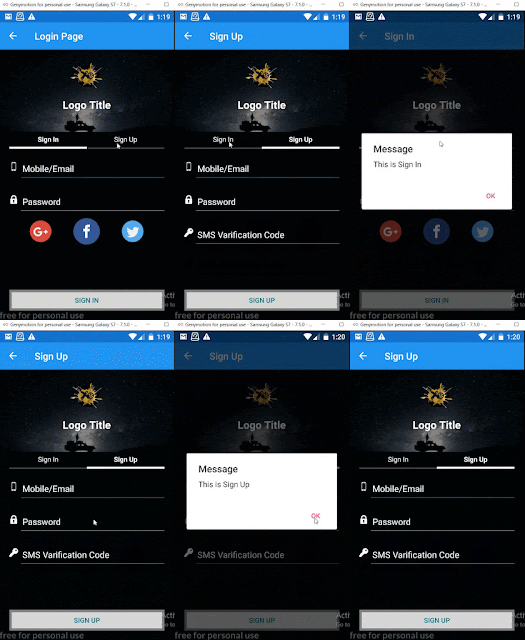


First create a simple slider for SIGN IN and SIGN UP.

Then we can create a CustomFloatingLabel and create a page in PCL project whose name is XFLoginAnimation.

Now we can write some XAML code for designing  SIGN IN / SIGN UP page, Here we add some controls like  CustomFloatingLabel for username, mobile and password then use social icon horizontally for social login  and use SMS verification Code and a signin button.


<?xml version="1.0" encoding="utf-8" ?>
<ContentPage xmlns="http://xamarin.com/schemas/2014/forms"
xmlns:x="http://schemas.microsoft.com/winfx/2009/xaml"
x:Class="XamBuddyApp.XFInterface.XFLogins.XFLoginAnimation"
xmlns:forms="clr-namespace:FFImageLoading.Forms;assembly=FFImageLoading.Forms"
xmlns:transformations="clr-namespace:FFImageLoading.Transformations;assembly=FFImageLoading.Transformations"
BackgroundColor="#9688EE"
Title="Login Page">
<ContentPage.Content>
<Grid x:Name="mainGrid">
<Grid.RowDefinitions>
<RowDefinition Height="150"/>
<RowDefinition Height="*"/>
</Grid.RowDefinitions>
<Grid Grid.Row="0">
<Image Source="BGimg" Aspect="AspectFill"/>
<StackLayout Padding="20">
<forms:CachedImage x:Name="Logo" HeightRequest="70" WidthRequest="70" Source="icon" 
Aspect="AspectFit" HorizontalOptions="CenterAndExpand" VerticalOptions="CenterAndExpand">
<forms:CachedImage.Transformations>
<transformations:RoundedTransformation Radius="250" BorderSize="0" />
</forms:CachedImage.Transformations>
</forms:CachedImage>
<Label Text="Logo Title" FontSize="Large" FontAttributes="Bold" HorizontalOptions="CenterAndExpand"
 VerticalOptions="CenterAndExpand"/>
</StackLayout>
</Grid>
<Grid Padding="20" Grid.Row="1" ColumnSpacing="0">
<Grid.RowDefinitions>
<RowDefinition Height="Auto"/>
<RowDefinition Height="4"/>
<RowDefinition Height="Auto"/>
<RowDefinition Height="*"/>
</Grid.RowDefinitions>
<Grid.ColumnDefinitions>
<ColumnDefinition Width=".5*"/>
</Grid.ColumnDefinitions>
<Label x:Name="mainsignin" Text="Sign In"
HorizontalTextAlignment="Center"
FontAttributes="Bold"
Grid.Row="0"
Grid.Column="0"
HorizontalOptions="FillAndExpand">
<Label.GestureRecognizers>
<TapGestureRecognizer Tapped="mainsignin_Tapped"/>
</Label.GestureRecognizers>
</Label>
<Label x:Name="mainsignup" HorizontalTextAlignment="Center" Text="Sign Up" Grid.Row="0"
 Grid.Column="1" HorizontalOptions="FillAndExpand">
<Label.GestureRecognizers>
<TapGestureRecognizer Tapped="mainsignup_Tapped"/>
</Label.GestureRecognizers>
</Label>
<BoxView x:Name="mainbox" BackgroundColor="Black" Grid.Row="1" Grid.Column="0"/>
<BoxView x:Name="mainbox1" VerticalOptions="End" BackgroundColor="Black" Opacity=".3" 
HeightRequest="2" Grid.Row="1" Grid.Column="0"/>
<BoxView x:Name="mainbox2" VerticalOptions="End" BackgroundColor="Black" Opacity=".3"
 HeightRequest="2" Grid.Row="1" Grid.Column="1"/>
<Grid x:Name="layoutuser" Grid.Row="2" Grid.Column="0" Grid.ColumnSpan="2" >
<Grid.ColumnDefinitions>
<ColumnDefinition Width="18"/>
<ColumnDefinition Width="*"/>
</Grid.ColumnDefinitions>
<Image Grid.Column="0" Source="mobile" Aspect="AspectFit" HeightRequest="18"/>
<Entry Grid.Column="1" Placeholder="Mobile/Email"/>
</Grid>
<Grid x:Name="layoutpass" Grid.Row="3" Grid.Column="0" Grid.ColumnSpan="2" >
<Grid.ColumnDefinitions>
<ColumnDefinition Width="18"/>
<ColumnDefinition Width="*"/>
</Grid.ColumnDefinitions>
<Image Grid.Column="0" Source="lock" Aspect="AspectFit" HeightRequest="18"/>
<Entry Grid.Column="1" Placeholder="Password"/>
</Grid>
<Grid x:Name="layoutconfpass" Grid.Row="4" Grid.Column="0" Grid.ColumnSpan="2" >
<Grid.ColumnDefinitions>
<ColumnDefinition Width="18"/>
<ColumnDefinition Width="*"/>
</Grid.ColumnDefinitions>
<Image Grid.Column="0" Source="key" Aspect="AspectFit" HeightRequest="18"/>
<Entry Grid.Column="1" Placeholder="SMS Varification Code"/>
</Grid>
<StackLayout x:Name="Social" Opacity="1" Grid.Row="5" Grid.Column="0" Grid.ColumnSpan="2" 
Padding="10" Orientation="Horizontal" Spacing="45" HorizontalOptions="CenterAndExpand">
<forms:CachedImage x:Name="GLImage" HeightRequest="45" WidthRequest="45"
Source="googlep" Aspect="AspectFit" HorizontalOptions="StartAndExpand">
<forms:CachedImage.Transformations>
<transformations:RoundedTransformation Radius="250" BorderSize="0" />
</forms:CachedImage.Transformations>
</forms:CachedImage>
<forms:CachedImage x:Name="FBImage" HeightRequest="55" WidthRequest="55" Source="facebook"
Aspect="AspectFit" HorizontalOptions="CenterAndExpand">
<forms:CachedImage.Transformations>
<transformations:RoundedTransformation Radius="250" BorderSize="0" />
</forms:CachedImage.Transformations>
</forms:CachedImage>
<forms:CachedImage x:Name="TWImage" HeightRequest="45" WidthRequest="45" Source="twitter"
Aspect="AspectFit" HorizontalOptions="EndAndExpand">
<forms:CachedImage.Transformations>
<transformations:RoundedTransformation Radius="250" BorderSize="0" />
</forms:CachedImage.Transformations>
</forms:CachedImage>
</StackLayout>
<Button x:Name="btn" Text="Sign In" Grid.Row="6" Grid.Column="0" Grid.ColumnSpan="2"
 VerticalOptions="End" BorderColor="Gray" BorderRadius="5" BorderWidth="5" TextColor="Teal"/>
</Grid>
</Grid>
</ContentPage.Content>
</ContentPage>


Here, I have set animation used with the C# code, when we tap on the sign page, the SMS verification entry is going down and become visibly false and social sign-in links are visible and we can sign up. SMS verification entry will appear in the bottom with the animation and signup links become visibly false.


using System;
using System.Collections.Generic;
using System.Linq;
using System.Text;
using System.Threading.Tasks;
using Xamarin.Forms;
using Xamarin.Forms.Xaml;


namespace XamBuddyApp.XFInterface.XFLogins
{
[XamlCompilation(XamlCompilationOptions.Compile)]
public partial class XFLoginAnimation : ContentPage
{
public XFLoginAnimation()
{
  InitializeComponent();
}


protected async override void OnAppearing()
{
  base.OnAppearing();
  await Task.WhenAll(
  layoutconfpass.TranslateTo(0, mainGrid.Height, 200, Easing.Linear),
  Social.TranslateTo(0, -layoutconfpass.Height - 15, 200, Easing.Linear));
}


private async void mainsignin_Tapped(object sender, EventArgs e)
{
  mainsignin.FontAttributes = FontAttributes.Bold;
  mainsignup.FontAttributes = FontAttributes.None;
  await Task.WhenAll(
  mainbox.TranslateTo(0, 0, 120, Easing.SinOut),
  layoutconfpass.TranslateTo(0, mainGrid.Height, 500, Easing.SinOut),
  Social.TranslateTo(0, -layoutconfpass.Height - 15, 500, Easing.SinOut),
  Social.FadeTo(1, 500));
  EmptyEntry();
  this.Title = btn.Text = "Sign In";
}

private async void mainsignup_Tapped(object sender, EventArgs e)
{
  mainsignup.FontAttributes = FontAttributes.Bold;
  mainsignin.FontAttributes = FontAttributes.None;
  await Task.WhenAll(
  mainbox.TranslateTo(mainbox.Width, 0, 120, Easing.SinOut),
  layoutconfpass.TranslateTo(0, 0, 500, Easing.SinOut),
  Social.TranslateTo(0, 0, 500, Easing.SinOut),
  Social.FadeTo(0, 100));
  EmptyEntry();
  this.Title = btn.Text = "Sign Up";
}
private void EmptyEntry()
{
  txtuser.Text = txtpass.Text = txtconfirm.Text = "";
  txtuser.Unfocus();
  txtpass.Unfocus();
  txtconfirm.Unfocus();
}
}
}

Sunday, 27 May 2018

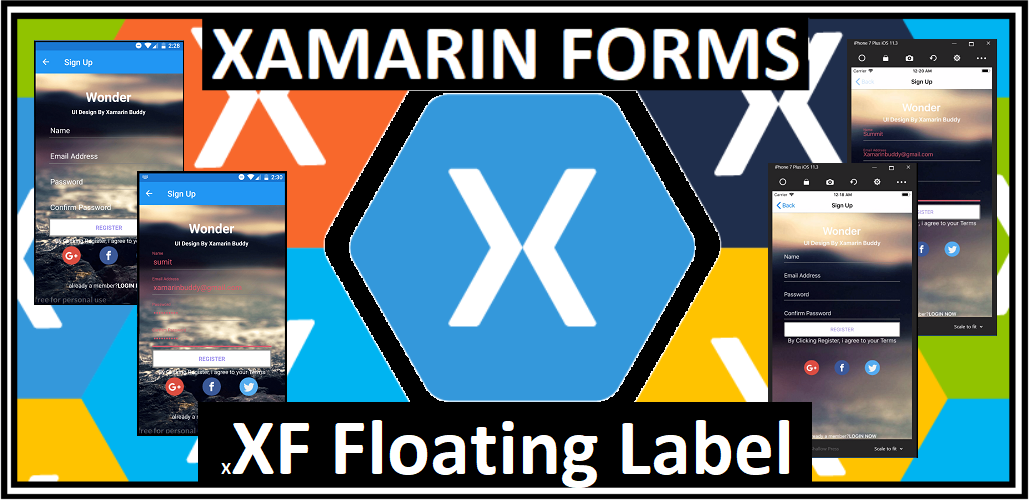
XF Floating Label


Hello Guys,
Today I want to tell you about the hack for floating labels. It is very important for designing purpose.

I know that many people are searching floating labels and I searched a lot and found that this is a hack. This is the reason why I'm going to show the way to create floating labels in xamarin forms, this is a very easy and interesting post.

You are ready to begin, so we start with a BorderlessEntry, and if you do not know about this, please read the BorderlessEntry Blog or Article and watch the Video, I have mentioned the URL below.


Okay, So we continue with this BorderlessEntry and now we are using BindableProperty and some animation code for the float the label.
Implementation:-
  • Go to the PCL project and right-click on the project.
  • Then, create a new folder which is named Custom View.
  •  In this folder, I have to create a content view, we need to do this, which is named "FloatingEntryView.xaml".
  • After creating "FloatingEntryView.xaml" we will prepare a view on "FloatingEntryView.xaml" for a custom floating label in Xamarin.Forms.
XAML CODE=> FloatingEntry.xaml


<ContentView.Content>
<Grid ColumnSpacing="16" Margin="0,8">
<Grid.RowDefinitions>
<RowDefinition Height="Auto"/>
<RowDefinition Height="1"/>
</Grid.RowDefinitions>
<Label x:Name="HiddenLabel" FontSize="10" IsVisible="False" Margin="25,15,25,10"/>
<local:CustomEntry x:Name="EntryField" Text="{Binding Text, Mode=TwoWay}" Margin="0,12,0,0"/>
<BoxView x:Name="BottomBorder" BackgroundColor="Gray" Grid.Row="1" HeightRequest="2" Margin="0" HorizontalOptions="FillAndExpand"/>
<BoxView x:Name="HiddenBottomBorder" BackgroundColor="Gray" Grid.Row="1" HeightRequest="2" Margin="0" WidthRequest="0" HorizontalOptions="Center"/>
</Grid>
</ContentView.Content>


Now we are set BorderlessEntry, hide label and the boxview in "FloatingEntryView.xaml" view. Well, I am satisfied this design part, now I'm going to write some code on "Focus" and "Focus" event and using animation to display the label when I touch any entry.

Here we set up BindableProperties on
AccentColor, Text, Text Color, Placeholder and Placeholder Color. Below I mentioned that the blah blah code ….. :)

C# Code FloatingEntry.cs


using System.Threading.Tasks;
using Xamarin.Forms;
using Xamarin.Forms.Xaml;

namespace XamBuddyApp.CustomControls.CustomView
{
[XamlCompilation(XamlCompilationOptions.Compile)]
public partial class FloatingEntry : ContentView
{
public FloatingEntry()
{
InitializeComponent();
EntryField.BindingContext= this;

EntryField.Focused+= async (s, a) =>
{

HiddenBottomBorder.BackgroundColor= AccentColor;
EntryField.TextColor= HiddenLabel.TextColor = AccentColor;
HiddenLabel.IsVisible= true;

if(string.IsNullOrEmpty(EntryField.Text))
{
//Here we give animation on label position, label fading and box view.
await Task.WhenAll(
HiddenBottomBorder.LayoutTo(new Rectangle(BottomBorder.X, BottomBorder.Y, BottomBorder.Width,BottomBorder.Height + 2), 200),
HiddenLabel.FadeTo(1,120),
HiddenLabel.TranslateTo(HiddenLabel.TranslationX- 25, EntryField.Y - EntryField.Height , 200, Easing.BounceIn)
);
EntryField.Placeholder= null;
}
else
{
await HiddenBottomBorder.LayoutTo(new Rectangle(BottomBorder.X, BottomBorder.Y,BottomBorder.Width, BottomBorder.Height), 200);
}
};
EntryField.Unfocused+= async (s, a) =>
{
if(string.IsNullOrEmpty(EntryField.Text))
{
await Task.WhenAll(
HiddenBottomBorder.LayoutTo(new Rectangle(BottomBorder.X, BottomBorder.Y, 0, BottomBorder.Height + 2), 200),
HiddenLabel.FadeTo(0,180),
HiddenLabel.TranslateTo(HiddenLabel.TranslationX+ 25, EntryField.Y, 50, Easing.BounceIn)
);
EntryField.Placeholder= Placeholder;
}
else
{
await HiddenBottomBorder.LayoutTo(new Rectangle(BottomBorder.X, BottomBorder.Y, 0,BottomBorder.Height), 100);
}
};
}

public static BindableProperty TextProperty = BindableProperty.Create(nameof(Text),typeof(string), typeof(FloatingEntry), defaultBindingMode: BindingMode.TwoWay);

public static BindableProperty PlaceholderProperty =BindableProperty.Create(nameof(Placeholder),typeof(string),typeof(FloatingEntry), defaultBindingMode:BindingMode.TwoWay,
propertyChanged:(bindable, oldVal, newval) =>
{
var matEntry = (FloatingEntry)bindable;
matEntry.EntryField.Placeholder= (string)newval;
matEntry.HiddenLabel.Text= (string)newval;
});

public static BindableProperty IsPasswordProperty =BindableProperty.Create(nameof(IsPassword), typeof(bool),typeof(FloatingEntry), defaultValue: false, 
propertyChanged: (bindable, oldVal,newVal) =>
{
var matEntry = (FloatingEntry)bindable;
matEntry.EntryField.IsPassword= (bool)newVal;
});

public static BindableProperty KeyboardProperty =BindableProperty.Create(nameof(Keyboard), typeof(Keyboard),typeof(FloatingEntry), defaultValue: Keyboard.Default, 
propertyChanged:(bindable, oldVal, newVal) =>
{
var matEntry = (FloatingEntry)bindable;
matEntry.EntryField.Keyboard= (Keyboard)newVal;
});

public static BindableProperty AccentColorProperty =BindableProperty.Create(nameof(AccentColor),typeof(Color),typeof(FloatingEntry),defaultValue:Color.Accent);

public Color AccentColor 
{
get=>(Color)GetValue(AccentColorProperty);
set=> SetValue(AccentColorProperty, value);
}

public Keyboard Keyboard
{
get=>(Keyboard)GetValue(KeyboardProperty);
set=> SetValue(KeyboardProperty, value);
}

public bool IsPassword
{
get=>(bool)GetValue(IsPasswordProperty);
set=> SetValue(IsPasswordProperty, value);
}

public string Text
{
get=>(string)GetValue(TextProperty);
set=> SetValue(TextProperty, value);
}

public string Placeholder
{
get=>(string)GetValue(PlaceholderProperty);
set=> SetValue(PlaceholderProperty, value);
}
}
}


In the code, we giving some animation effects so that the effect of the float can be seen as the original widget of Android.
Finally, Code is Complete,
Here I am creating a login form on the MainPage.xml so I will be showing the effect of the floating label. 
So let's see floating label does works properly like an android widget?

 XAML CODE=> MainPage.xaml


<ContentPage.Content>
        <Grid Padding="35"  BackgroundColor="#9688EE">
            <Grid.RowDefinitions>
                <RowDefinition Height="Auto"/>
                <RowDefinition Height="Auto"/>
                <RowDefinition Height="Auto"/>
                <RowDefinition Height="Auto"/>
                <RowDefinition Height="*"/>
            </Grid.RowDefinitions>
            <StackLayout HorizontalOptions="CenterAndExpand" Grid.Row="0" Grid.Column="0">
                <Label Text="Wonder" TextColor="White" FontSize="32" FontAttributes="Bold" HorizontalOptions="Center"/>
                <Label Text="UI Design By Xamarin Buddy" TextColor="White" Font="18,Bold"/>
                <StackLayout Spacing="0" Orientation="Horizontal" HorizontalOptions="CenterAndExpand" >
                    <Label Text="Facebook" TextColor="White"/>
                    <Label Text="Twitter" TextColor="White"/>
                </StackLayout>
            </StackLayout>
            <cv:FloatingEntry Placeholder="Email" AccentColor="White" Grid.Row="1" Grid.Column="0" />
            <cv:FloatingEntry Placeholder="Password" IsPassword="True" AccentColor="White" Grid.Row="2" Grid.Column="0"/>
            <Label Text="Forgot Password?" TextColor="White" Grid.Row="3" Grid.Column="0" Margin="0,-15,0,0"/>
            <StackLayout Spacing="25" Padding="10" Grid.Row="4" Grid.Column="0" VerticalOptions="EndAndExpand">
                <Button Text="Login"  BackgroundColor="White" TextColor="#9688EE" BorderRadius="5" HeightRequest="45"
                    BorderWidth="3" BorderColor="Gray"/>
                <Label Text="Register Now" HorizontalOptions="CenterAndExpand"  TextColor="White" />
            </StackLayout>
        </Grid>
    </ContentPage.Content>


TADDDAAAAA!!!!!!!!!!!!!!!!!!!


XF FloatingLabel is working successfully.

Monday, 7 May 2018

XF Popup.Animation


Hello Xamarians,
Today, I am here with another post in which I am telling you about Xamarin forms Animation with PopupPage, before going through the article I would like to tell you about Rg.Plugins.Popup. It is very useful Plugin used to create popup window in xamarin forms. we can also put animations to these popups so that they look more attractive and enhance user experience. This article is about XF Animation with PopupPage.


In this article We will learn how to use XF Animation with popuppage.


Implementation
Open Visual Studio and select a "New Project"...


Now, select Cross-Platform App, give the project a name and set the project path. Then, click OK.


Select the template as "Blank App" and code sharing as "PCL".
Now, we can install Rg.Plugins.Popup. Right-click on the project, then click on NuGet Package.

Click Browse and search for Rg.Plugins.Popup, select Plugins and then check the projects in which we want to add this plugin.


Now, we are going to do some  XAML coding and writing some button code in the "MainPage.xaml"


<?xml version="1.0" encoding="utf-8" ?>
<ContentPage xmlns="http://xamarin.com/schemas/2014/forms"
xmlns:x="http://schemas.microsoft.com/winfx/2009/xaml"
xmlns:local="clr-namespace:XFPopupAnimation"
x:Class="XFPopupAnimation.MainPage">


<StackLayout>
<!-- Place new controls here -->
<Label Text="Welcome to Xamarin.Forms Popup Animation!" 
HorizontalOptions="Center"
VerticalOptions="CenterAndExpand" />


<Button Text="Registration Page" Clicked="Button_Clicked_1"/>
<Button Text="Login Page" Clicked="Button_Clicked"/>
</StackLayout>
</ContentPage>


Then, write code for popup navigation:


private async void Button_Clicked(object sender, EventArgs e)
{
await Navigation.PushPopupAsync(new LoginPopupPage());
}


private async void Button_Clicked_1(object sender, EventArgs e)
{
await Navigation.PushPopupAsync(new RegPage());
} 


Now, we are creating "RegPage.xaml" PopupPages.

<?xml version="1.0" encoding="utf-8" ?>
<pages:PopupPage xmlns="http://xamarin.com/schemas/2014/forms"
xmlns:x="http://schemas.microsoft.com/winfx/2009/xaml"
x:Class="XFPopupAnimation.LoginPopupPage"
xmlns:pages="clr-namespace:Rg.Plugins.Popup.Pages;assembly=Rg.Plugins.Popup"
xmlns:animations="clr-namespace:Rg.Plugins.Popup.Animations;assembly=Rg.Plugins.Popup" >
<pages:PopupPage.Resources>
<ResourceDictionary>
<Style x:Key="EntryStyle" TargetType="Entry">
<Setter Property="PlaceholderColor" Value="#9cdaf1"/>
<Setter Property="TextColor" Value="#7dbbe6"/>
</Style>
</ResourceDictionary>
</pages:PopupPage.Resources>
<pages:PopupPage.Animation>
<animations:ScaleAnimation PositionIn="Bottom" PositionOut="Center" ScaleIn="1" ScaleOut="0.7" DurationIn="700" EasingIn="BounceOut"/>
</pages:PopupPage.Animation>
<ScrollView HorizontalOptions="Center" VerticalOptions="Center">
<AbsoluteLayout>
<Frame x:Name="FrameContainer" Margin="15" HorizontalOptions="Center" BackgroundColor="White">
<StackLayout IsClippedToBounds="True" Padding="10, 5" Spacing="3">
<Image HorizontalOptions="Center" x:Name="OctocatImage" Margin="10" HeightRequest="150" WidthRequest="150" Source="Logo"/>


<Entry HorizontalOptions="Center" x:Name="UsernameEntry" Style="{StaticResource EntryStyle}" Placeholder="Username" />
<Entry HorizontalOptions="Center" x:Name="PasswordEntry" Style="{StaticResource EntryStyle}" Placeholder="Password" IsPassword="True"/>
<Button Margin="10, 5" BackgroundColor="#7dbbe6" HorizontalOptions="Fill" x:Name="LoginButton" Text="Login">
<Button.HeightRequest>
<OnPlatform x:TypeArguments="x:Double" Android="50" iOS="30" WinPhone="30"/>
</Button.HeightRequest>
</Button>
</StackLayout>
</Frame>
<ContentView AbsoluteLayout.LayoutFlags="PositionProportional" AbsoluteLayout.LayoutBounds="1, 0, -1, -1">
<ContentView.GestureRecognizers>
<TapGestureRecognizer Tapped="OnCloseButtonTapped"/>
</ContentView.GestureRecognizers>
<Image x:Name="CloseImage" HeightRequest="30" WidthRequest="30">
<Image.Source>
<OnPlatform x:TypeArguments="ImageSource" Android="close_circle_button.png" iOS="close_circle_button.png"/>
</Image.Source>
</Image>
</ContentView>
</AbsoluteLayout>
</ScrollView>
</pages:PopupPage>


Now, we are coding in C#.

using Rg.Plugins.Popup.Extensions;
using Rg.Plugins.Popup.Pages;
using System.Threading.Tasks;
using Xamarin.Forms;
using Xamarin.Forms.Xaml;


namespace XFPopupAnimation
{
[XamlCompilation(XamlCompilationOptions.Compile)]
public partial class LoginPopupPage : PopupPage
{
public LoginPopupPage ()
{
InitializeComponent ();
}
public bool IsAnimationEnabled { get; private set; } = true;
protected override void OnAppearing()
{
base.OnAppearing();


FrameContainer.HeightRequest = -1;
if (!IsAnimationEnabled)
{
CloseImage.Rotation = 0;
CloseImage.Scale = 1;
CloseImage.Opacity = 1;


LoginButton.Scale = 1;
LoginButton.Opacity = 1;


UsernameEntry.TranslationX = PasswordEntry.TranslationX = 0;
UsernameEntry.Opacity = PasswordEntry.Opacity = 1;


return;
}


CloseImage.Rotation = 380;
CloseImage.Scale = 0.3;
CloseImage.Opacity = 0;
LoginButton.Scale = 0.3;
LoginButton.Opacity = 0;
UsernameEntry.TranslationX = PasswordEntry.TranslationX = -10;
UsernameEntry.Opacity = PasswordEntry.Opacity = 0;
}


protected override async Task OnAppearingAnimationEnd()
{
if (!IsAnimationEnabled)
return;


var translateLength = 400u;


await Task.WhenAll(
UsernameEntry.TranslateTo(0, 0, easing: Easing.SpringOut, length: translateLength),
UsernameEntry.FadeTo(1),
(new Func<Task>(async () =>
{
await Task.Delay(200);
await Task.WhenAll(
PasswordEntry.TranslateTo(0, 0, easing: Easing.SpringOut, length: translateLength),
PasswordEntry.FadeTo(1));


}))());


await Task.WhenAll(
CloseImage.FadeTo(1),
CloseImage.ScaleTo(1, easing: Easing.SpringOut),
CloseImage.RotateTo(0),
LoginButton.ScaleTo(1),
LoginButton.FadeTo(1));
}


protected override async Task OnDisappearingAnimationBegin()
{
if (!IsAnimationEnabled)
return;


var taskSource = new TaskCompletionSource<bool>();


var currentHeight = FrameContainer.Height;


await Task.WhenAll(
UsernameEntry.FadeTo(0),
PasswordEntry.FadeTo(0),
LoginButton.FadeTo(0));


FrameContainer.Animate("HideAnimation", d =>
{
FrameContainer.HeightRequest = d;
},
start: currentHeight,
end: 170,
finished: async (d, b) =>
{
await Task.Delay(300);
taskSource.TrySetResult(true);
});


await taskSource.Task;
}


private void OnCloseButtonTapped(object sender, EventArgs e)
{
CloseAllPopup();
}


protected override bool OnBackgroundClicked()
{
CloseAllPopup();


return false;
}


private async void CloseAllPopup()
{
await Navigation.PopAllPopupAsync();
}
}
}

Now, we are creating "RegPage.xaml" PopupPages.

<?xml version="1.0" encoding="utf-8" ?>
<pages:PopupPage xmlns="http://xamarin.com/schemas/2014/forms"
xmlns:x="http://schemas.microsoft.com/winfx/2009/xaml"
x:Class="XFPopupAnimation.RegPage"
xmlns:pages="clr-namespace:Rg.Plugins.Popup.Pages;assembly=Rg.Plugins.Popup"
xmlns:animations="clr-namespace:Rg.Plugins.Popup.Animations;assembly=Rg.Plugins.Popup" >
<pages:PopupPage.Resources>
<ResourceDictionary>
<Style x:Key="EntryStyle" TargetType="Entry">
<Setter Property="PlaceholderColor" Value="#9cdaf1"/>
<Setter Property="TextColor" Value="#7dbbe6"/>
</Style>
</ResourceDictionary>
</pages:PopupPage.Resources>


<pages:PopupPage.Animation>
<animations:ScaleAnimation PositionIn="Bottom" PositionOut="Center" ScaleIn="1" ScaleOut="0.7" DurationIn="700" EasingIn="BounceOut"/>
</pages:PopupPage.Animation>


<ScrollView HorizontalOptions="Center" VerticalOptions="Center">
<AbsoluteLayout>
<Frame x:Name="FrameContainer" Margin="15" HorizontalOptions="Center" BackgroundColor="White">
<StackLayout IsClippedToBounds="True" Padding="10, 5" Spacing="3">
<Image Source="Logo" HorizontalOptions="Center" x:Name="OctocatImage" Margin="10" HeightRequest="150" WidthRequest="150"/>
<Entry HorizontalOptions="Center" x:Name="FnameEntry" Style="{StaticResource EntryStyle}" Placeholder="First Name" />
<Entry HorizontalOptions="Center" x:Name="LnameEntry" Style="{StaticResource EntryStyle}" Placeholder="Last Name" />
<Entry HorizontalOptions="Center" x:Name="UsernameEntry" Style="{StaticResource EntryStyle}" Placeholder="Username" />
<Entry HorizontalOptions="Center" x:Name="PasswordEntry" Style="{StaticResource EntryStyle}" Placeholder="Password" IsPassword="True"/>
<Button Margin="10, 5" BackgroundColor="#7dbbe6"
HorizontalOptions="Fill" x:Name="LoginButton" Text="Login">
<Button.HeightRequest>
<OnPlatform x:TypeArguments="x:Double" Android="50" iOS="30" WinPhone="30"/>
</Button.HeightRequest>
</Button>
</StackLayout>
</Frame>
<ContentView AbsoluteLayout.LayoutFlags="PositionProportional" AbsoluteLayout.LayoutBounds="1, 0, -1, -1">
<ContentView.GestureRecognizers>
<TapGestureRecognizer Tapped="OnCloseButtonTapped"/>
</ContentView.GestureRecognizers>
<Image x:Name="CloseImage" HeightRequest="30" WidthRequest="30">
<Image.Source>
<OnPlatform x:TypeArguments="ImageSource" Android="close_circle_button.png" iOS="close_circle_button.png"/>
</Image.Source>
</Image>
</ContentView>
</AbsoluteLayout>
</ScrollView>
</pages:PopupPage>

Some white RegPage Code for animation...
We are using override method for the animation which name is

  1.  override void OnAppearing()
  2.  override async Task OnAppearingAnimationEnd()
  3.  override async Task OnDisappearingAnimationBegin()
  4.  override bool OnBackgroundClicked()

We white c# Code for what animation appearing when open registration page.

using Rg.Plugins.Popup.Extensions;
using Rg.Plugins.Popup.Pages;
using System;
using System.Collections.Generic;
using System.Linq;
using System.Text;
using System.Threading.Tasks;


using Xamarin.Forms;
using Xamarin.Forms.Xaml;


namespace XFPopupAnimation
{
[XamlCompilation(XamlCompilationOptions.Compile)]
public partial class RegPage : PopupPage
{
public RegPage ()
{
InitializeComponent ();
}
public bool IsAnimationEnabled { get; private set; } = true;
protected override void OnAppearing()
{
base.OnAppearing();


FrameContainer.HeightRequest = -1;
if (!IsAnimationEnabled)
{
CloseImage.Rotation = 0;
CloseImage.Scale = 1;
CloseImage.Opacity = 1;


LoginButton.Scale = 1;
LoginButton.Opacity = 1;


FnameEntry.TranslationX =
LnameEntry.TranslationX =
UsernameEntry.TranslationX =
PasswordEntry.TranslationX = 0;
FnameEntry.TranslationX =
LnameEntry.TranslationX =
UsernameEntry.Opacity =
PasswordEntry.Opacity = 1;


return;
}


CloseImage.Rotation = 380;
CloseImage.Scale = 0.3;
CloseImage.Opacity = 0;
LoginButton.Scale = 0.3;
LoginButton.Opacity = 0;
FnameEntry.TranslationX =
LnameEntry.TranslationX =
UsernameEntry.TranslationX =
PasswordEntry.TranslationX = -10;
FnameEntry.Opacity =
LnameEntry.Opacity =
UsernameEntry.Opacity =
PasswordEntry.Opacity = 0;
}


protected override async Task OnAppearingAnimationEnd()
{
if (!IsAnimationEnabled)
return;


var translateLength = 800u;


await Task.WhenAll(
FnameEntry.TranslateTo(0, 0, easing: Easing.SpringOut, length: translateLength),
FnameEntry.FadeTo(1),
(new Func<Task>(async () =>
{
await Task.Delay(400);
await Task.WhenAll(


LnameEntry.TranslateTo(0, 0, easing: Easing.SpringOut, length: translateLength),
LnameEntry.FadeTo(1),
Task.Delay(200),
UsernameEntry.TranslateTo(0, 0, easing: Easing.SpringOut, length: translateLength),
UsernameEntry.FadeTo(1),
Task.Delay(200),
PasswordEntry.TranslateTo(0, 0, easing: Easing.SpringOut, length: translateLength),
PasswordEntry.FadeTo(1));
}))());


await Task.WhenAll(
CloseImage.FadeTo(1),
CloseImage.ScaleTo(1, easing: Easing.SpringOut),
CloseImage.RotateTo(0),
LoginButton.ScaleTo(1),
LoginButton.FadeTo(1));
}


protected override async Task OnDisappearingAnimationBegin()
{
if (!IsAnimationEnabled)
return;


var taskSource = new TaskCompletionSource<bool>();


var currentHeight = FrameContainer.Height;


await Task.WhenAll(
FnameEntry.FadeTo(0),
LnameEntry.FadeTo(0),
UsernameEntry.FadeTo(0),
PasswordEntry.FadeTo(0),
LoginButton.FadeTo(0));


FrameContainer.Animate("HideAnimation", d =>
{
FrameContainer.HeightRequest = d;
},
start: currentHeight,
end: 170,
finished: async (d, b) =>
{
await Task.Delay(500);
taskSource.TrySetResult(true);
});


await taskSource.Task;
}


private void OnCloseButtonTapped(object sender, EventArgs e)
{
CloseAllPopup();
}


protected override bool OnBackgroundClicked()
{
CloseAllPopup();


return false;
}


private async void CloseAllPopup()
{
await Navigation.PopAllPopupAsync();
}
}
}


TADDA!!!!!!!!!!!!!!!
If you want the full source code click on this URL
The XF Popup.Animation is working successfully.
If you are lazy download Click Here
If you want to watch this video Click Here

Featured Post

Sliding Entry In Xamarin.Forms

  Today, I am going to show you how to create a Custom Slide entry in Xamarin.Forms with animation and also using gradient color. here is Y...